How to Generate Prompt-to-Video With AI Tools
Learn how to generate text-to-video with AI in 7 steps, with a CoAnimator example, prompt formulas, credit costs and when a model is the wrong tool.
7 Oct 2026·11 min read·Insights
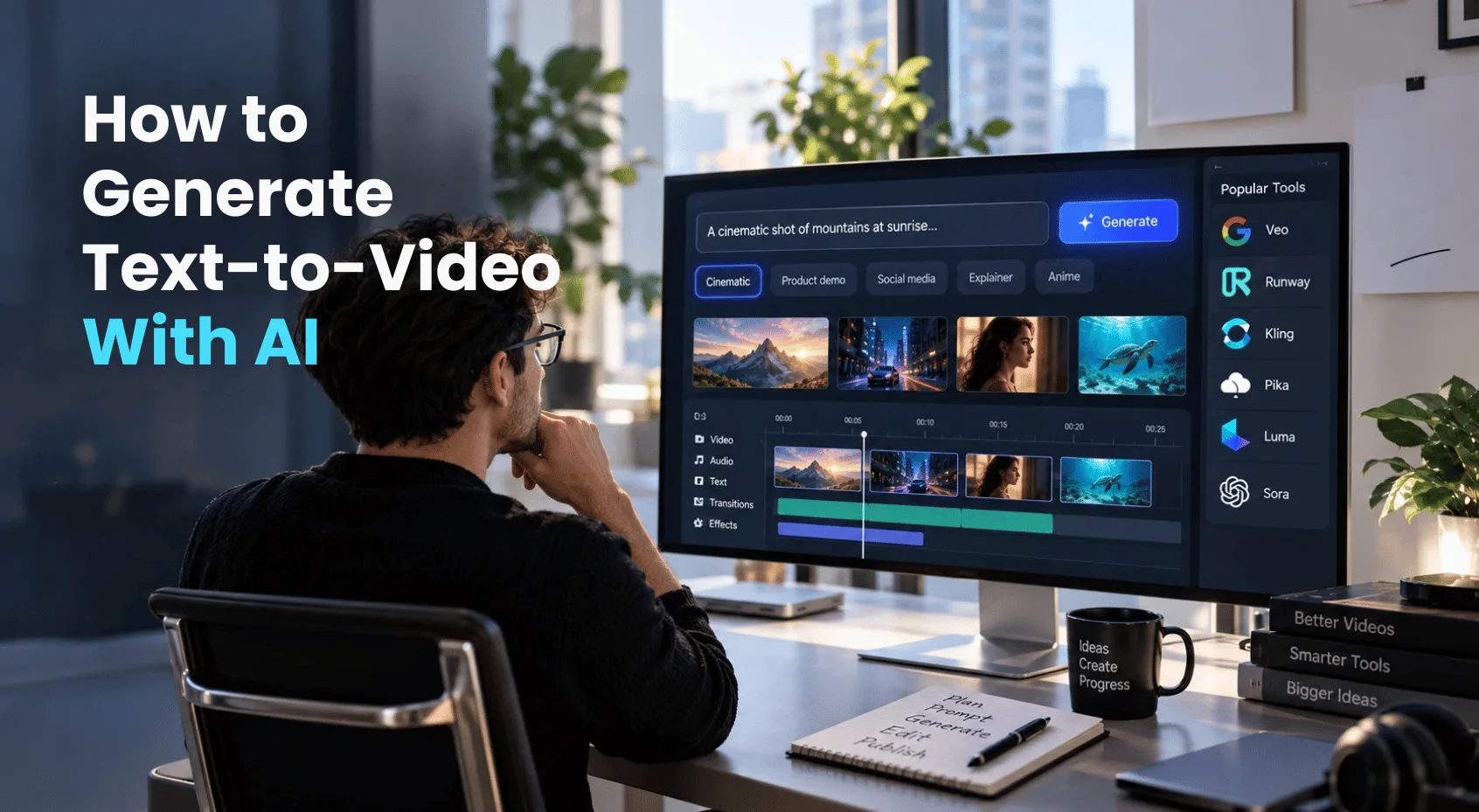
Video production used to mean a script, a camera, a crew and an editor, with days or weeks between the idea and the finished cut. AI has changed that. Tools now turn a written description into moving footage, and some can build a whole product demo from a brief.
Generating one clip with a text to video AI tool takes a sentence and a few seconds. Getting from that clip to a finished video is the part few guides cover. They stop at a list of generators, so the first clip you make looks great, the second returns a different face, and the sixty-second video never appears.
In this blog, we will walk you through how to generate text-to-video with AI from scratch, step by step. Along the way, you will follow a real example of AI building a video from a written brief to an exported MP4, see what a minute of footage costs and learn when a model is the wrong tool.
Two Ways to Generate Text-to-Video With AI
Text-to-video starts with your written instructions and ends with a rendered video file. Two routes get you there, and both produce usable work in 2026.
- Generate Video Clips With AI Models
Models such as Veo 3.1, Kling 3.0, Runway Gen-4.5 and Seedance 2.0 synthesize every pixel from a prompt. Google's documentation names Gemini Omni Flash as its default video model and keeps Veo 3.1 for native audio, scene extension and last-frame control.
Choose this route when your footage has no real-world source, such as a drone shot over an invented coastline. Output arrives as short clips, so you always finish with an assembly.
- Build Videos With AI Coding Agents
A coding agent writes the animation instead of a model drawing it. Claude Code and other coding agents can edit project files, run a renderer and revise scenes, so a screenshot of your dashboard stays exactly what it is.
The worked example below uses CoAnimator, a desktop video studio where a coding agent builds scenes from your project files and renders MP4 files locally.
Both routes follow the same workflow, so the seven steps below work whichever you pick.
How to Create a Text-to-Video AI Workflow
Each step gives you the general method, then the action to take. The examples use CoAnimator and a fictional 30-second demo for an invoicing app called Ledgerly, so you can follow along with your own product.
1. Write the Video Script First
Decide the hook, the single point and the closing action yourself before any generation starts. Presentation pace runs between 100 and 150 words a minute, so a 60-second voiceover needs a script of 100 to 150 words. An AI writing assistant can produce a first draft, but those three decisions stay with you.
Keep the script short. Every extra sentence becomes another shot, and every shot costs several attempts.
For Ledgerly, end the brief with a request for the script first. The agent drafts it and waits for your edits, so a weak line gets cut before any scene exists.
2. Break the Script Into Short Shots
Models return clips of a few seconds. Veo 3.1 generates clips of 4, 6 or 8 seconds and Runway prices Gen-4.5 in five-second units. Planning in five-second shots keeps the math simple, so a 60-second video becomes 12 shots.
Write one line per shot covering what is seen, the camera move and the feeling. A table in Notion can hold your prompts, take counts and approvals.
An agent-built video swaps shots for scenes. Turn your shot list into a scene list with a time range for each scene, and add your real assets to the media panel first.
3. Choose a Text-to-Video AI Tool
Rankings of text to video AI models move quickly, and they do not decide for you. On the Artificial Analysis text-to-video leaderboard, checked October 7, 2026, Wan 3.0, Utopai X and Seedance 2.5 hold the top three places. Kling 3.0 sits 16th and Veo 3.1 18th, and Runway Gen-4.5 is not listed. The scores come from blind votes on generic prompts, so pick by the constraint that matters most.
Sound and control: Veo 3.1 always generates synchronized audio and supports first and last frames, according to Google.
Cost per second: On Runway's rate card Gen-4.5 costs 12 credits a second, against 29 for Seedance 2.0 Fast and 40 for Seedance 2.0 Pro at 1080p.
Hard shots: Our rule is to render the hardest shot, whether hands, text or a crowd, on two models before committing to one.
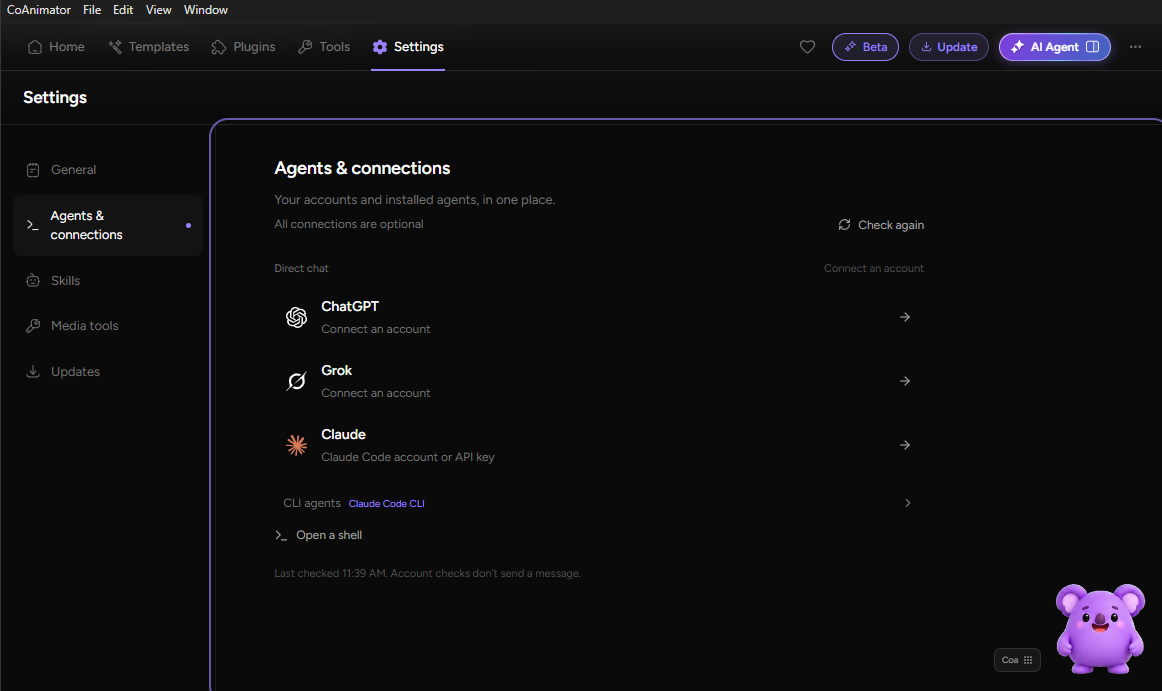
In CoAnimator, this choice was made during setup. The agent you connected does the building, and the Product Demo template tells it how a product demo should run.
4. Write Better Text-to-Video Prompts
Google's Veo documentation lists seven prompt elements, namely subject, action, style, camera position and motion, composition, focus and lens effects, and ambiance. A five-part version condenses them for reuse across a shot list. Name the subject, the action, the setting, the camera move and the light.
Concrete nouns and verbs add control, while adjective piles such as cinematic and epic add little. Paste one character-and-style sentence word for word into every prompt, because rewording makes a character's look drift from clip to clip.
The table shows three text to video AI prompt examples, each rewritten from a weak version.
Video type | Weak prompt | Five-part prompt |
|---|---|---|
Product teaser | A cool video of a water bottle | A matte steel water bottle on a wet slate rock with condensation beading, a hand lifts it slowly, mountain lake behind, low-angle tracking shot, cool dawn light |
Social ad | A fun gym ad | A runner ties her shoes on a rooftop at sunrise, stands and sprints toward the camera, city skyline behind, handheld tracking shot, golden backlight |
Explainer scene | Show how delivery works | A small delivery van drives through a night city grid, glowing route lines tracing its path on the road, aerial top-down crane shot, blue and amber neon light |
A missing part leaves the model guessing.
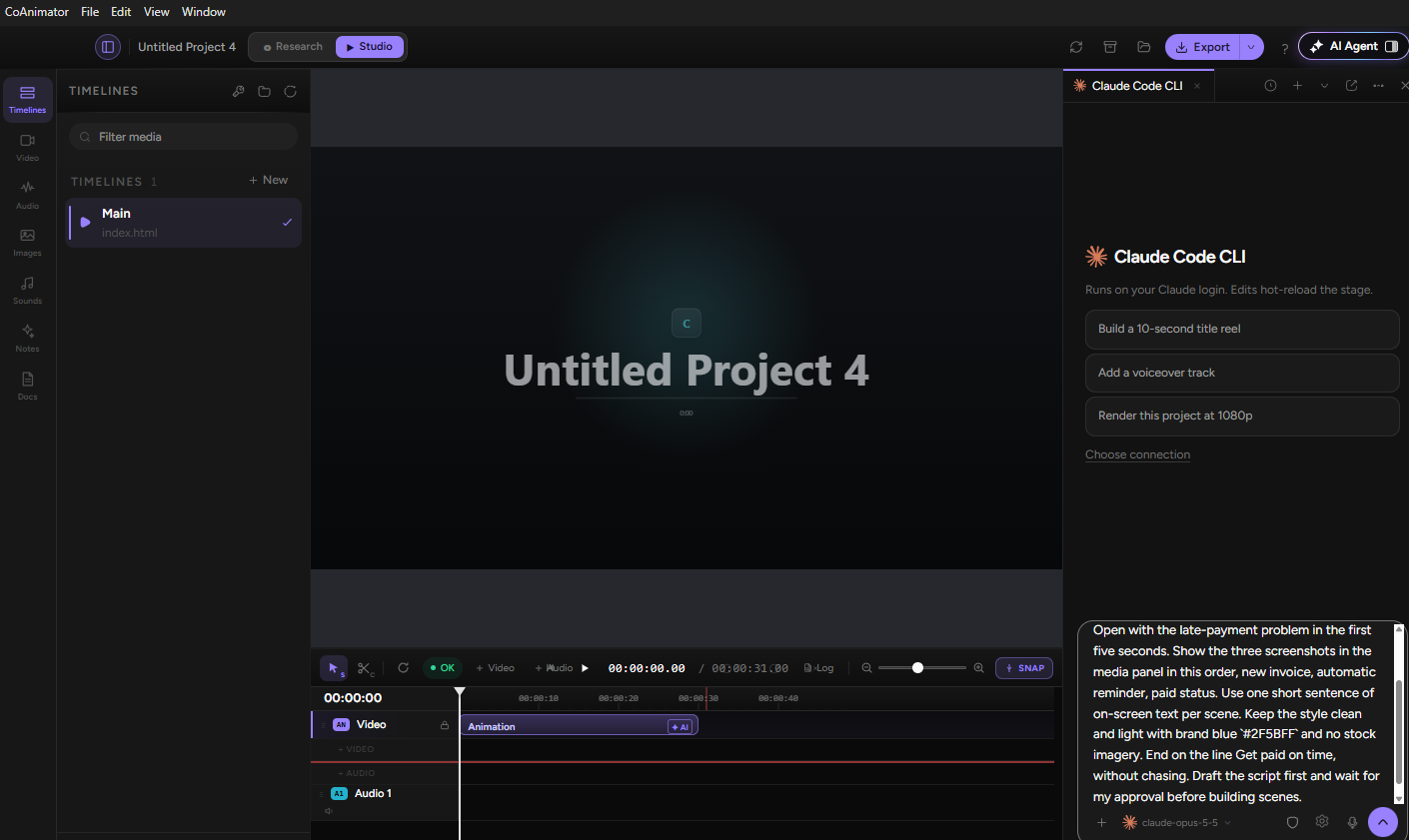
Now send the full brief in CoAnimator, which expands your first message to full length. Name the viewer, length, scene order, assets, style and closing line in one message. The Ledgerly brief reads as follows.
Build a 30-second product demo for Ledgerly, an invoicing app for freelancers. The viewer is a designer who sends invoices from a spreadsheet. Open with the late-payment problem in the first five seconds. Show the three screenshots in the media panel in this order, new invoice, automatic reminder, paid status. Use one short sentence of on-screen text per scene. Keep the style clean and light with brand blue
#2F5BFFand no stock imagery. End on the line Get paid on time, without chasing. Draft the script first and wait for my approval before building scenes.
5. Generate Multiple Takes
Budget three attempts per shot, the baseline behind the cost math below. Generate them together, compare side by side and log the winner in the shot list. When a prompt fails, change one element at a time so the cause stays visible.
Next, approve the script and let the agent build the scenes. Review the result on the timeline, which reloads after each edit, and send notes naming a scene, a duration and an element, such as this one for Ledgerly.
The reminder scene leaves the screen too early. Hold it for two more seconds and highlight the Send now button when the narration says reminder.
6. Keep Characters and Scenes Consistent
Drift is a common flaw in assembled AI video, and you spot it as a changed face, jacket or street. Veo 3.1 accepts up to three reference images, so a still of the character or the last frame of the previous clip can anchor the next generation. Clips built with reference images, like 1080p clips, run the full eight seconds.
Without those controls, generate one clean reference image and run image-to-video from it.
Then lock in consistency by keeping the three screenshots in the media panel and the brand blue in the brief. The agent builds every scene from them, so nothing drifts.
7. Add Voiceover, Music, and Captions
Record or generate the voiceover once from the script and lay the clips over it, since dialogue generated clip by clip tends to shift in tone. Add captions for silent viewing and trim each clip to the narration.
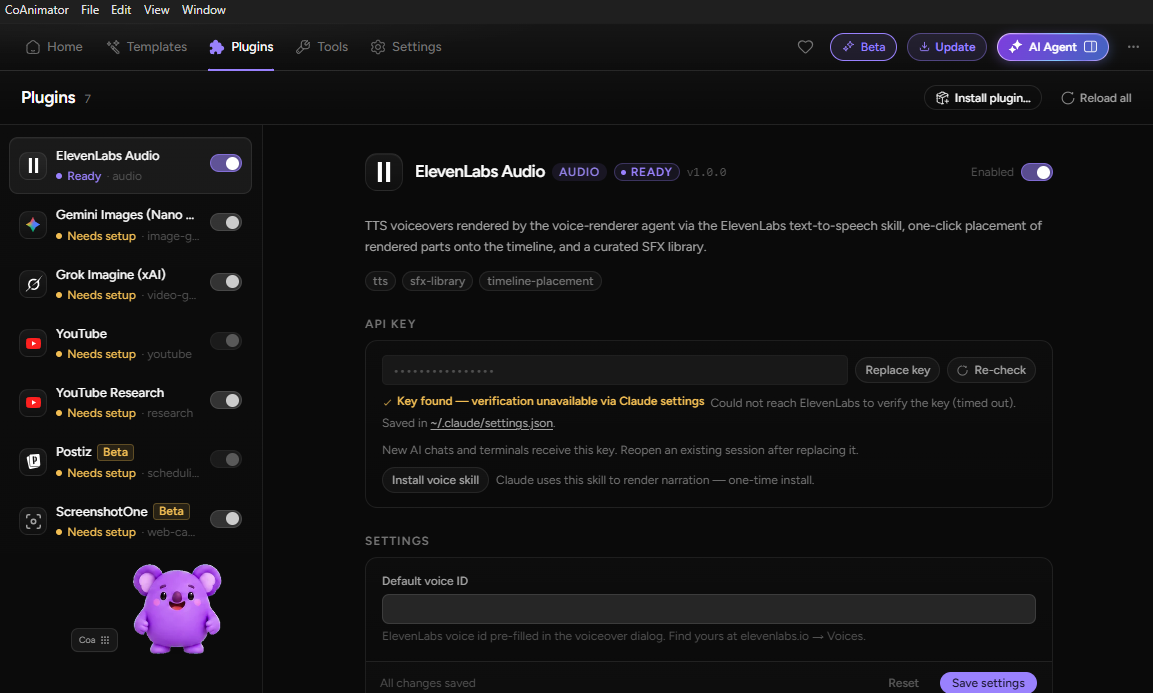
Finally, add sound in CoAnimator. Record the narration, load an audio file or generate it with the text-to-speech plugin, which connects through an ElevenLabs API key. Then ask the agent to align the scenes to the voice track. Keep music 12 to 20 dB below the voice, according to CoAnimator's own demo-video guide.
Last, open the Export panel, check resolution, frame rate, quality and duration range, then render. To work from the command line, install it from Settings, then General, then Command line & agent skill, then Install coa command.
coa render ledgerly-demo --resolution 1080p --fps 30 --quality high --out ledgerly-demo.mp4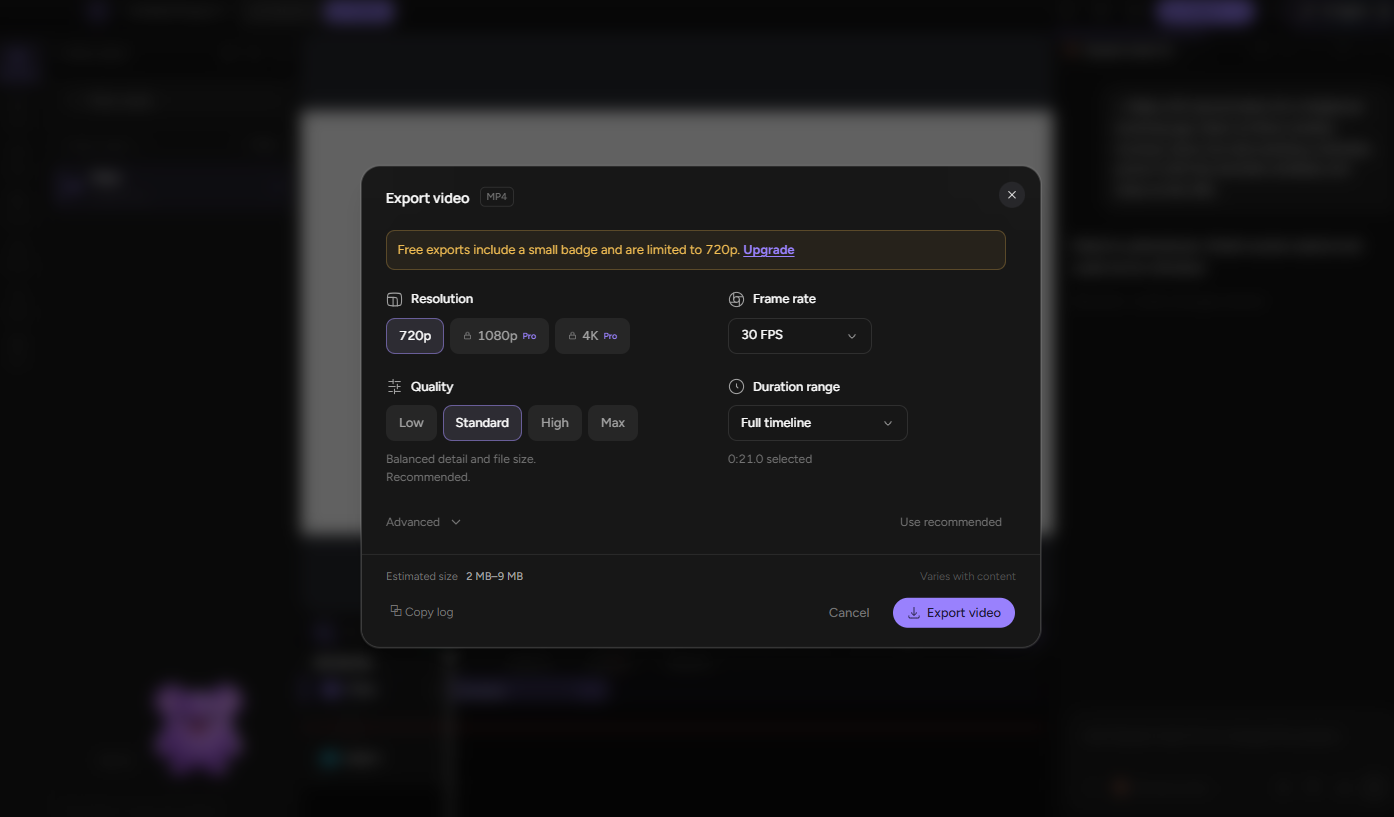
Two more commands help. The start and end flags render a range in seconds, which checks one scene before the full export, and the pack command bundles the project into one file for sharing.
coa render ledgerly-demo --start 1 --end 5
coa pack ledgerly-demo --out ledgerly-demo.coa
When the reminder screen changes in the next release, swap the screenshot, ask the agent to adjust the scene and run the same render command.
Put disclosure on your export checklist. Veo and Gemini Omni Flash add a SynthID watermark to every video, and YouTube requires a label for realistic altered or synthetic content, according to its disclosure policy. Clearly unrealistic content and routine edits such as script generation or color correction need none.
Follow the steps in order and every credit ties to a planned shot and every revision to an existing scene. The next section puts numbers on those credits.
AI Video Generation Cost and Credits
Allowances translate into fewer seconds than plan names suggest, so do the math before you pick a plan. Runway publishes its rates clearly, which makes it a useful yardstick.
Plan | Price per month on annual billing | Monthly credits | Gen-4.5 footage |
|---|---|---|---|
Standard | $12 | 625 | 52 seconds |
Pro | $28 | 2,250 | 187 seconds |
Max | $76 | 9,500 | 791 seconds |
Figures come from the same rate card, checked on October 7, 2026. At 12 credits a second, the 12-shot video from step 2 needs 720 credits with one attempt per shot. Three attempts per shot raise the total to 2,160 credits, which one month of Pro covers and Standard does not.
An agent-built project changes the math. CoAnimator renders on your own machine with no per-export credits, so a revision costs you time instead of credits. Credit pricing also draws a steady complaint from buyers, because forecasting spend is hard when usage varies shot by shot.
Even a well-planned budget fails if the model it targets disappears.
How to Reduce AI Video Model Risk
Video models can disappear, and Sora shows how fast. OpenAI's help page lists the Sora web and app experiences as discontinued on April 26, 2026 and the API on September 24, 2026, with no named replacement. Pipelines built on the Sora API had to move to another provider.
Keep your scripts, shot lists and prompts in files you own, and a model change becomes a prompt rewrite instead of a rebuild. Our procurement checklist for AI tools adds three checks worth running on any video vendor. Ask which model provider powers the tool, test data export during the trial and write down a plan for the day a model is deprecated.
Model risk is one way credits disappear. Product demos expose a second, because generated footage cannot reproduce your interface.
Use Real Screenshots for Product Demos
Generative models draw plausible interfaces, not your interface. A 2025 benchmark of ten systems, T2VTextBench, found every model averaging below 0.4 on a 0-to-1 scale for rendering requested on-screen text, with the best at 0.37. The systems predate this year's releases, so test the exact label or logo your video needs.
Our take is to show the real thing whenever a button, a number or a logo has to be right. Keep the real screenshot or recording in the frame, add motion, captions and narration around it, and use generated clips as B-roll for everything else.
Questions
Frequently asked questions
What is text to video AI?
Text to video AI turns written instructions into a rendered video. A generative model can draw the footage from a prompt, or a coding agent can assemble scenes from your own screenshots and recordings.
Is there a free text to video AI generator?
Yes, but free tiers suit tests, not finished videos. Runway's free plan gives 125 one-time credits, which is about ten seconds of footage at Gen-4.5's rate.
Which text to video AI model is best?
No single model wins every shot, and rankings change monthly. Choose by what the shot needs, such as built-in audio, low cost per second or a hard subject like hands or text, and test your hardest shot on two models before committing.
How do I keep a character the same across clips?
Reuse the same word-for-word character description in every prompt, then anchor each shot with a reference image or the last frame of the previous clip. Veo 3.1 accepts up to three reference images.
How much does a one-minute AI video cost?
About 720 to 2,160 credits on Runway Gen-4.5, depending on whether each of the 12 shots takes one attempt or three. At three attempts, the total fits within one month of the $28 Pro plan on annual billing.
Build AI Videos That Are Easy to Update
Google's Gemini Omni Flash already supports multi-turn editing, where a video is refined through follow-up instructions in the same conversation. Expect the habit to spread, so next year's strongest results will likely come from three or four revision turns on a rough first clip, not one elaborate prompt.
The change worth planning for comes after the first export. When a video lives as editable project files, a product update no longer means a new production. Wire the render command into a scheduled job or a release pipeline, with a tool such as n8n to notify a reviewer, and demos can refresh with each release while one project produces a cut per audience or language. Pipelines like this will lean on agents holding state across turns, and the AI Agent Hub stack pairs orchestration with tracing and evaluation tools.
Both the models and the agents arriving next start from a written brief, so the brief is the skill worth sharpening now.
WebTechOS accepts no payment for coverage, placement or scores. Where a piece references pricing, it reflects published list rates at the date shown.
Keep reading
All insights →Designing Zero-Downtime Database Migration Frameworks
Design a zero-downtime database migration framework with expand and contract, safe backfills, lock budgets, sync, cutover gates and rollback.
Gorgias Alternatives for Small Ecommerce Teams in 2026
Compare the 7 best Gorgias alternatives for small ecommerce teams in 2026. Review pricing, AI automation, features, and support capabilities.
Is ChatGPT or Claude Worth Paying For? 2026 Pricing Breakdown
ChatGPT Plus and Claude Pro both cost $20. Compare Free, Go, Pro, Max and Ultra plans, usage limits and hidden costs to see which is worth paying for.
Best AI chatbot.com alternatives compared in 2026
Compare 7 AI chatbot alternatives for 2026 on resolution claims, pricing, channels and handoff. See where YourGPT, Intercom, Zendesk and Tidio fit.